Loading...
Hi, my name is Kyle Wright! I am an undergraduate student at Arizona State University pursuing a Bachelor of Science in Computer Science with a concentration in Cybersecurity, expected to graduate in May 2027. Born and raised in Mesa, Arizona, ASU felt like the natural place to begin my journey in tech. Outside of programming and problem solving, I enjoy playing guitar and spending time with friends and my local community.

This site features a collection of constellations, each representing a project I have built or contributed to. Across these projects I have worked with a wide variety of languages including Java, JavaScript, HTML, CSS, C, C++, and Python; a reflection of my versatility and my eagerness to learn new technologies. While not the most useful skill, I also possess both a filament and resin printer and have used both many times for different projects!
As a first-generation college student, earning a university degree and building a meaningful career has always been a personal goal of mine. While the Computer Science job market presents its challenges, I am confident in my skills, adaptability, and drive to succeed regardless of circumstance. If you are looking for a motivated, well-rounded candidate, I would be honored to be your first choice. Thank you for taking the time to visit!

This project, just like the calculator, was built using the JFrame / Swing Utilities for Java. This project taught me a lot about working with UI features, components in memory and overall project structure. Below, I'll showcase some of the features of this project and provide the github link so you can try it out!.
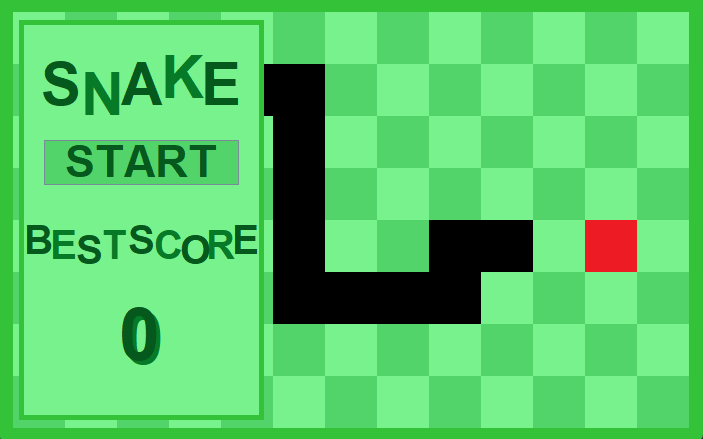
When the user opens the snake.jar file they will be presented with a welcoming menu that displays their current highscore (if they have one) and a button to start the game. Once the game opens, the snake will immediately start moving south. In the example on the right, the user prevented the snake from continuing south by pressing the right arrow!
The game keeps track of the current direction (North, East, South, West) and updates it when the user presses the corresponding directional arrow. Once the snake reaches an ‘apple’ it increases the snake's size by one and spawns a new apple in a random location only if the snake’s body isn't already in that square.
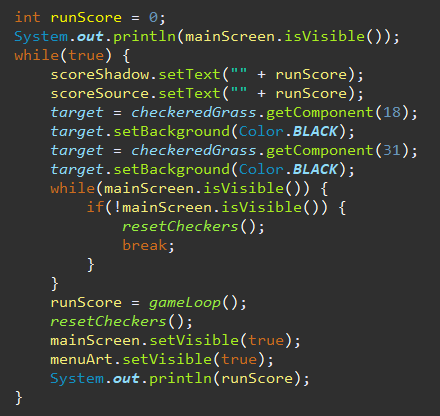
We construct a window for the game and create the game board called checkered grass using the GridLayout. From here we enter the main loop and wait until the user presses start, once they do we call gameloop() and start the game. Once the game ends, either by death or victory, we clear the board and reset to the title screen. As stated earlier the game runs on a series of directional booleans, spawning of apples at random locations and the snakebody. The snake body is actually an array of integers that represent a square on the board. If the integer at index(0) (the head of the snake) hits a wall, we end the game. If it hits an apple, we increase the size of the snake!
This game is quite simple; however, it taught me a lot about the fundamentals of project layouts and game design! Here is the download link on gitHub if you interested in that sort of thing.
This project, just like snake, was built using the JFrame / Swing Utilities for Java. This was my first real project within Computer Science and, at the time, was very difficult for me. It feels very rewarding to look back and see how much my programming skills have developed! Although this project may be simple, I will demonstrate its elegance and efficiency and go through the very brief code that was used to make this calculator.
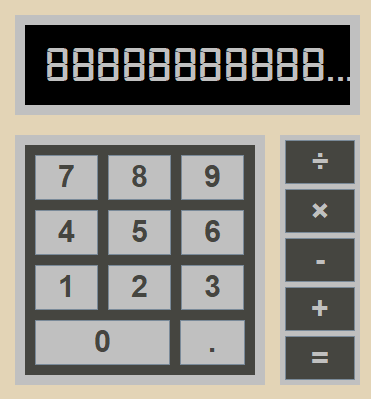
When the user opens the calculator.jar file they will open up to the main screen the displays all the numbers and the corresponding basic operations. The user can enter as big of a number as they like (up to the int limit) and do the four basic operations on that value. You can also clear the current number line by pressing backspace! Most of the code for this project is actually the setup for the JButton(s), with there being very little code needed to handle the user input.
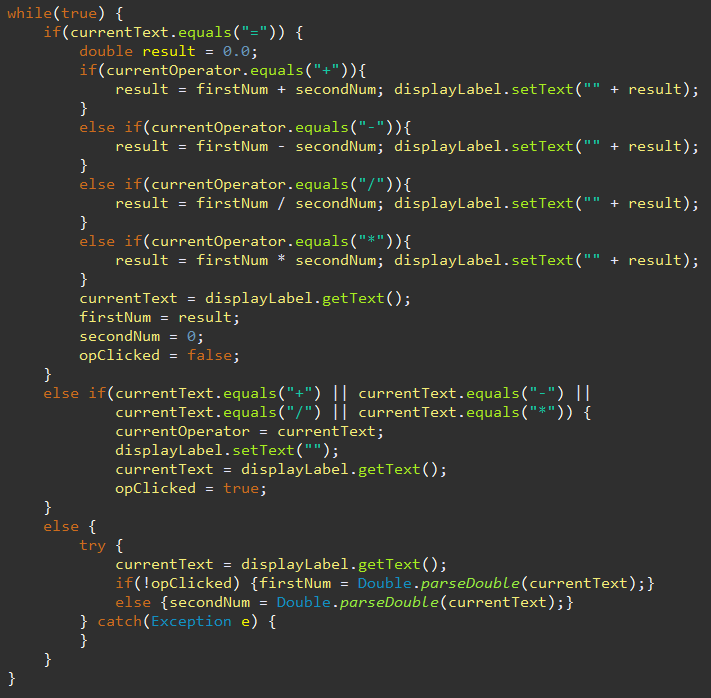
We construct a window for the calculator and create a series of inner and outer display panels. The actual display for the current computation uses a JLabel in front of the inner display panel, and the numbers are made by inserting JButtons (numbered 0 - 9) into a grid layout. The other JButtons are simply created manually. We then create a loop that waits on user input, and computer the result based off what the user entered. If you would like to download this project, here is the link.
If I were to start this project today, I would take a much different approach when it comes to the computation. Rather than having lots of branching decisions, we could simply create a function that takes the button pressed and computes it, without comparison checking.
The air freshener project is something I have been working quite long on, and it has been quite the battle to find the time to work on this as much as I would like to. The goal of this project is to create a refillable, eco-friendly and cost effective air freshener!
Before starting this project I actually had quite a lot of experience designing and creating 3D models in Inventor, a CAD software offered by my high school. Between my sophomore and junior year I realized that I wanted to start working on this dream project of mine, and so I began.
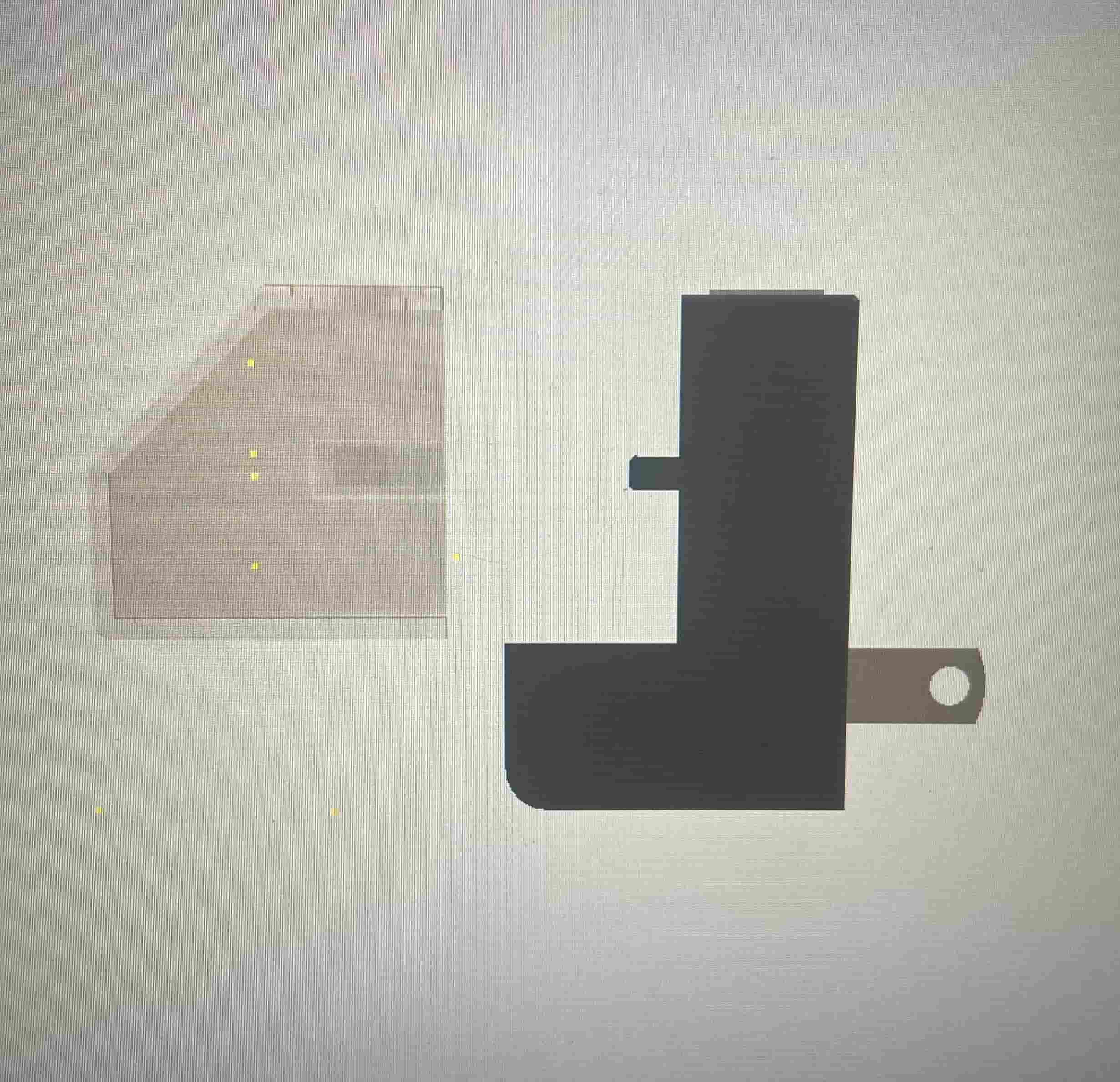
After some time trying to remember how to use Inventor, I created the first mockup design for the Air Freshener. The idea at the time was to fill the hole at the top of the clear container, and use the drain holes as needed for when we wish to refill the device. The clear liquid container then clips into the body which houses the various electronic components needed.
I then set up my printer and began trying to figure out the best print settings for this design. I had to order both clear and colored filament; however, for reasons that will become clear later the clear filament needed to be replaced with something else.
The first mockup I created was quite terrible and had a plethora of issues. First and foremost I set my heat too high on my printer, so as you can see in the photo to the left the print is warped. Secondly, the clear component was not clear, did not hold liquid, and was too heavy to support itself when held straight up (I had to use some trickery in this photo).
Going into the next design there were many things I needed to change, the most important to me was getting my printer settings correct. I also really wanted to get the print to hold liquid ; however, this did not happen and was the longest / most annoying struggle I’ve had with this project!
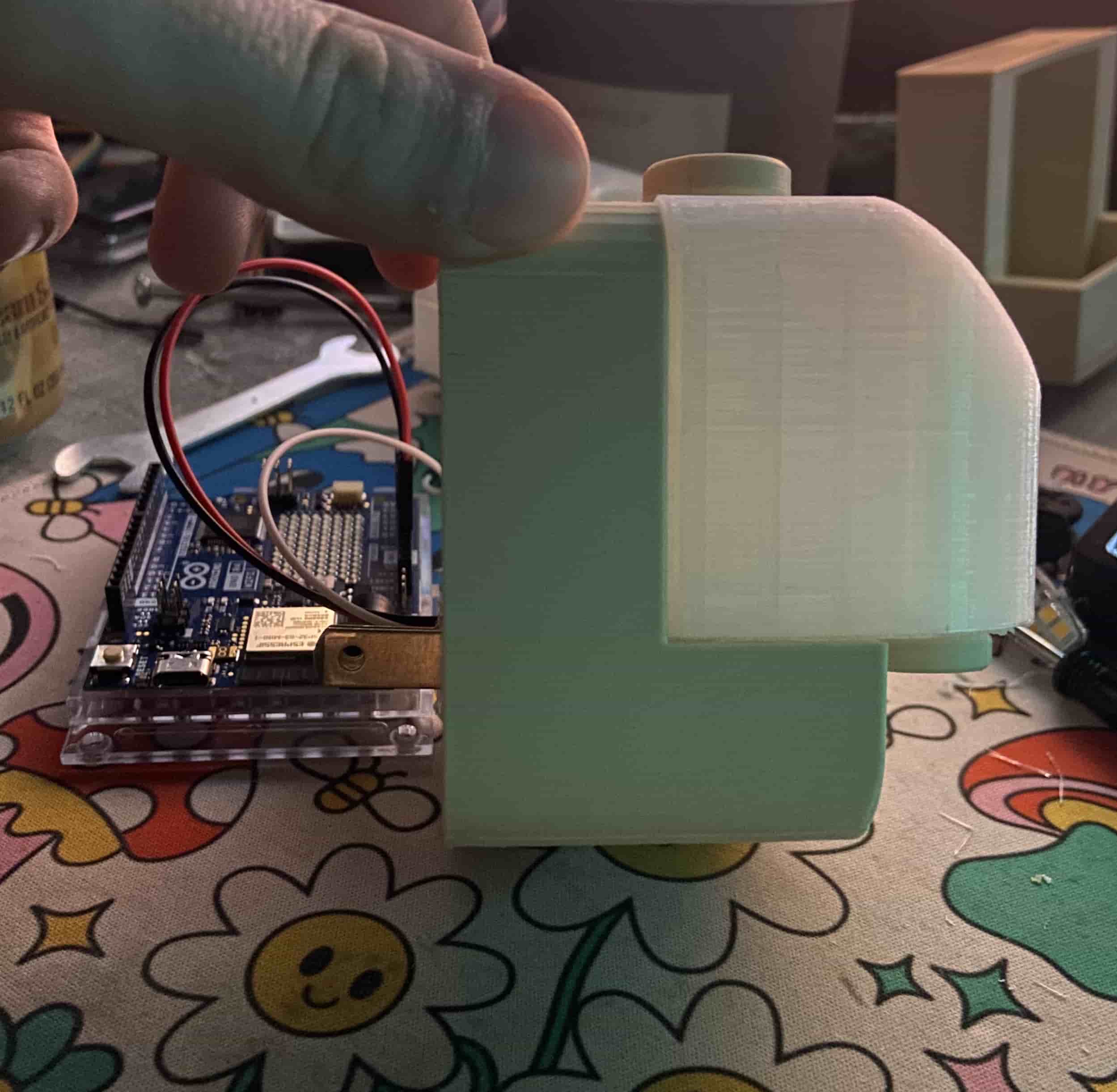
I like to call this Mk1 because it was my first ‘real’ design, what I mean by that is that this design possessed real components and was starting to approach a real design. For the Mk1 I used a full sized arduino externally in combination with a relay to toggle on and off a light. In later versions of this design the light will be replaced by resistors!
“Why resistors?” I hear you ask? We pass a high amount of current through the resistors to heat them up, these resistors then ‘burn’ the cotton wicks that are dipped into the liquid, this creates the smell! This will last until the liquid runs or the device is powered off. We are using a relay and arduino to toggle this burning on and off (controlling it with an app).
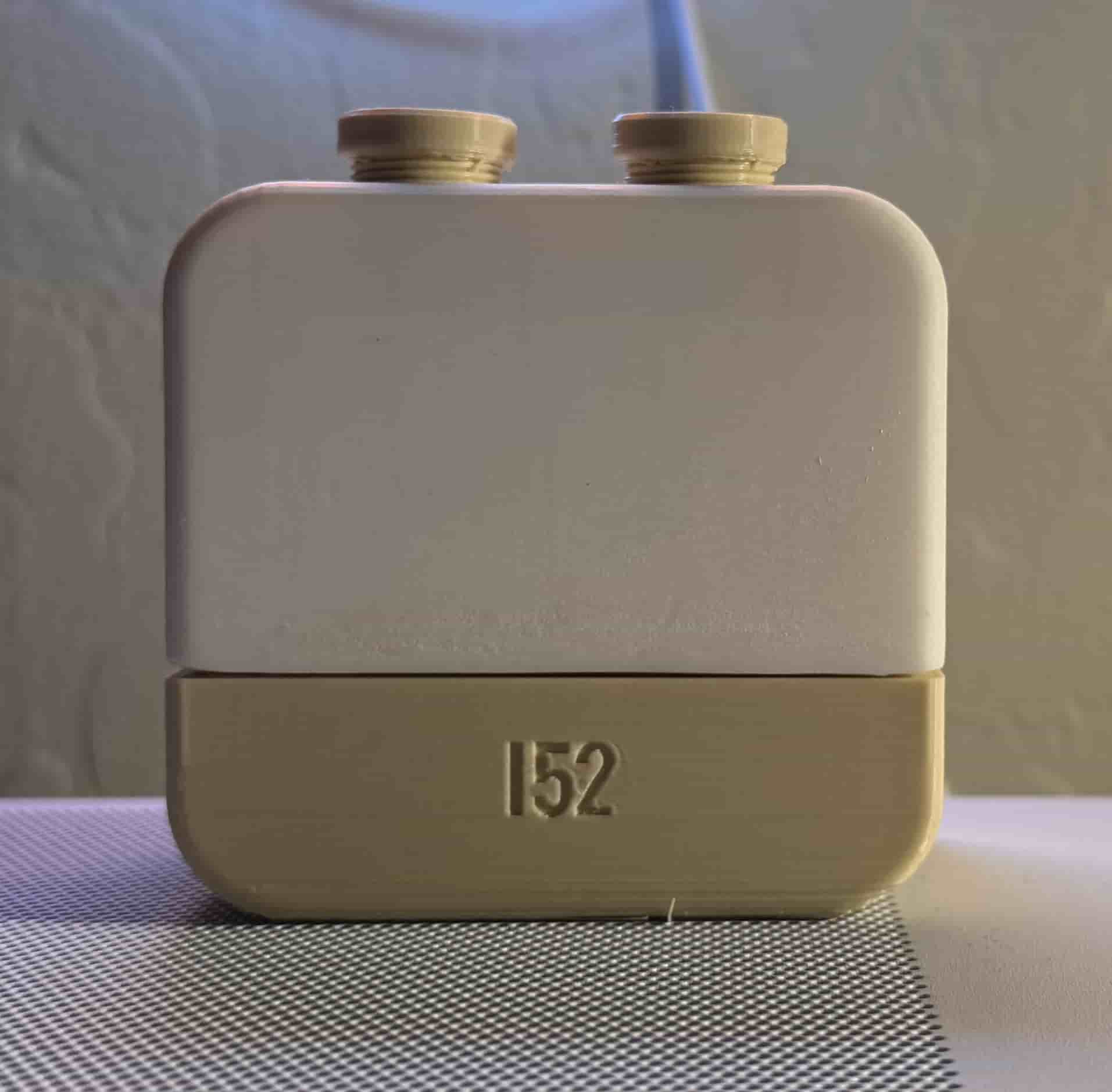
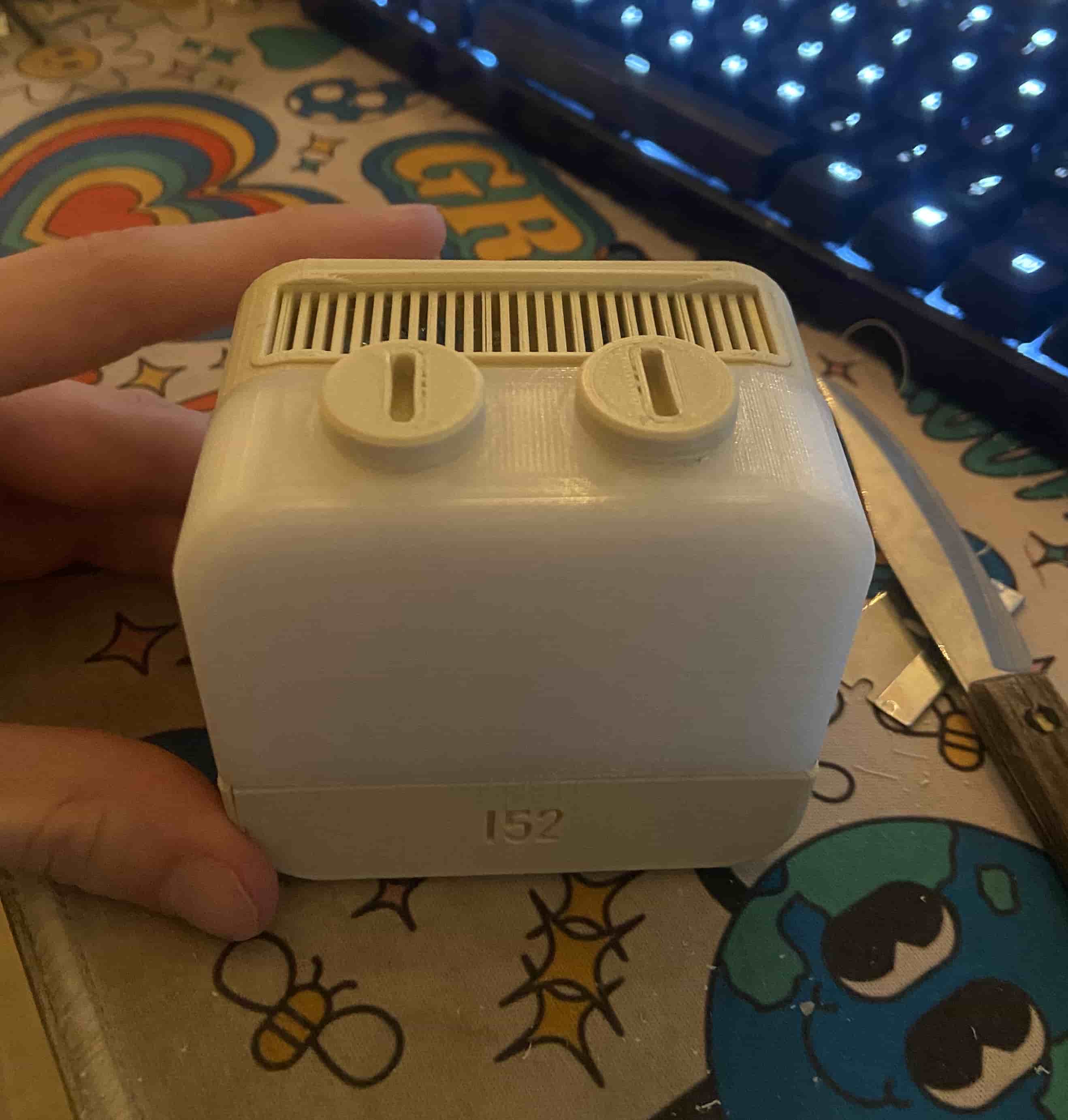
A lot changed from Mk1 -> Mk2, we significantly reduced the size of the clear shell, we no longer are using an external arduino (we switch to an arduino nano to fit it all inside!) and we can now plug this directly into the wall and toggle it on and off with a local host python script I setup. Also we have removed the bottom drain ports (we just drain it from the top if needed).
This was the point in the project where I started to feel really good; however, I started to ask myself “How am I going to get this to hold liquid, it just wont”. The reason for this is because all 3D prints have little air bubbles inside them, so by nature, they are quite terrible at holding liquids! I knew I needed to pivot to a different material for the shell.
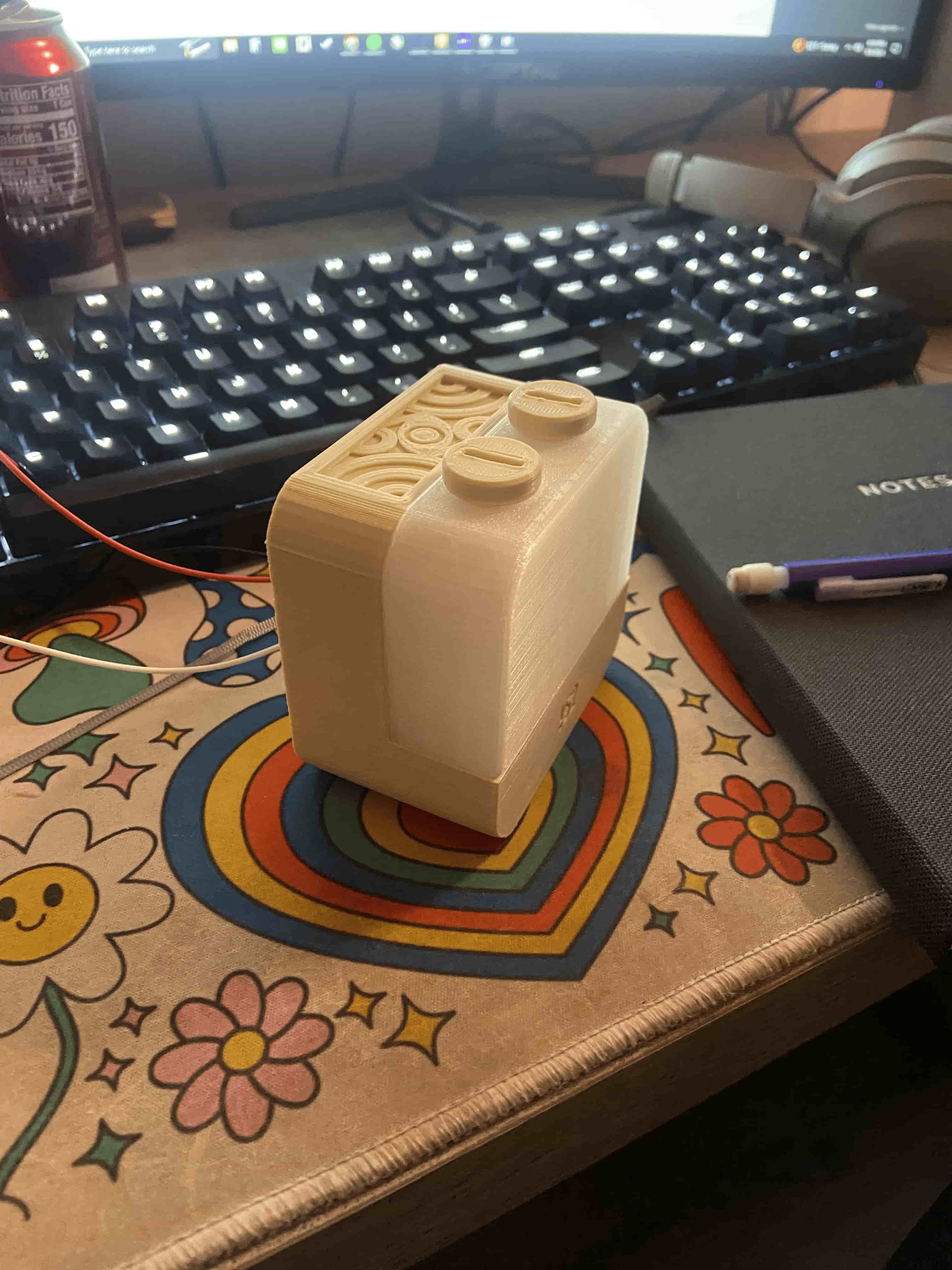
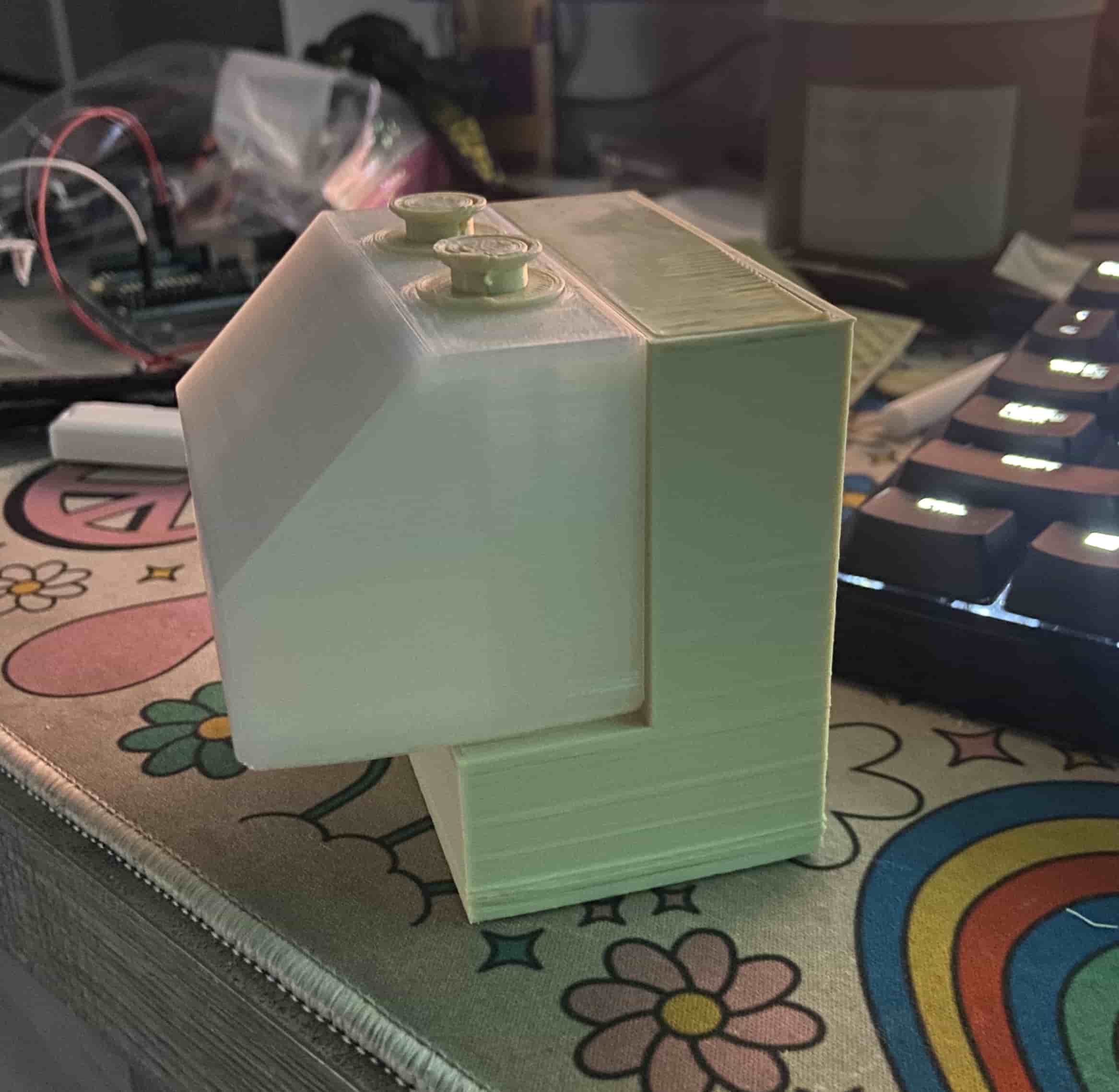
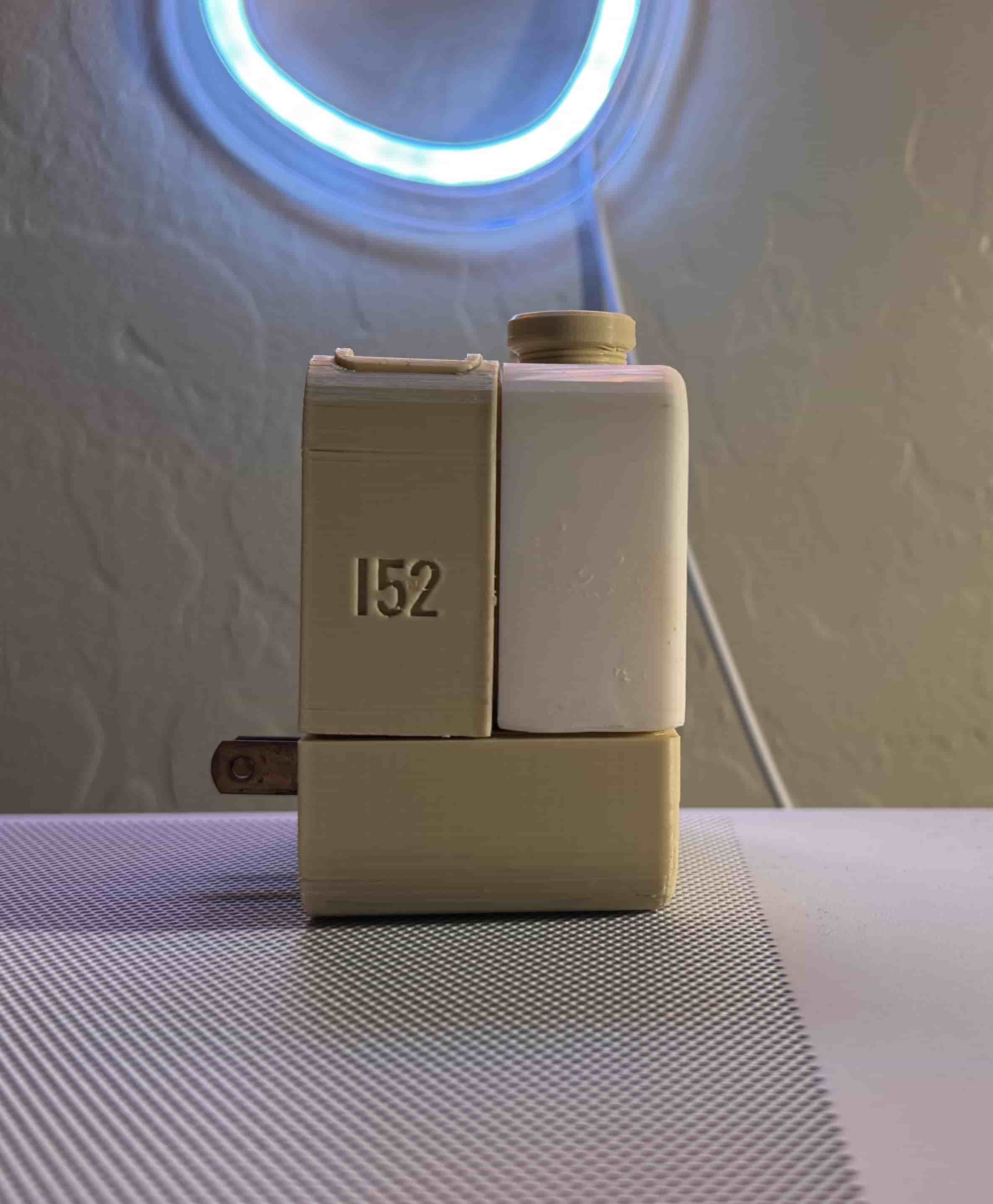
Mk3 is not nearly as pretty as Mk2; however, what it lacks in beauty it makes up for in its functionality. Our print now holds liquid, and we were able to achieve it by using a liquid resin printer to create a completely solid print!. The inside of the design did not change from Mk2 -> Mk3 and I am still using the arduino nano design till this day.
Unfortunately this is where the projects screeched to a halt due to classwork and a lack of next steps; however, in the future I plan to improve the overall appearance of the design and take the local host python script I created and turn it into an android application.